> For the complete documentation index, see [llms.txt](https://competitions.gitbook.io/competition-docs/llms.txt). Markdown versions of documentation pages are available by appending `.md` to page URLs; this page is available as [Markdown](https://competitions.gitbook.io/competition-docs/minigames/view-minigames/setting-up-spinner.md).
# Setting up Spinner
If you've read our [Setting up Scratch Cards](/competition-docs/minigames/view-minigames/setting-up-scratch-cards.md) article then you will see a lot of parallels between that and this article.
You may only need to read one of these articles to understand how to operate both of them but in this article we will show you how the Spinner works from a customer perspective aswell as how to set it up.
{% hint style="warning" %}
The Spinner needs an Instant Prize Competition to function
{% endhint %}
### Get started with Spinner
Setup an Instant Prize Competition as usual and then scroll under the Featured image to find the Minigames widget.
Select the Spinner Game and save the competition. Once you have done that, every ticket purchased will give customers a go at the Spinner.
### How does it work?
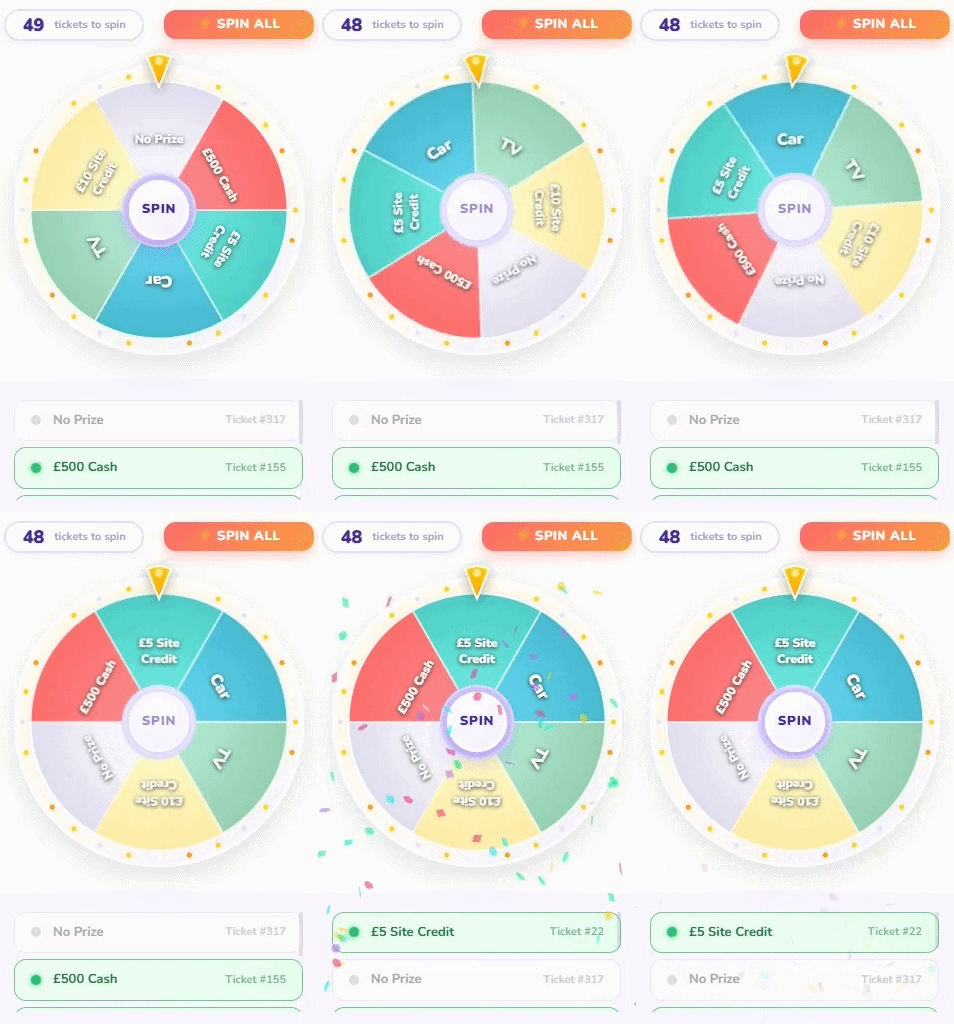
The Spinner & all minigame modes integrate with the Instant Prizes to provide a visual overlay that is more interactive than the original instant wins. When someone purchases a ticket they will see a button after Checkout aswell as on the Spinner activated competition above the Add to Cart button where they can open a Spinner Popup.
{% hint style="success" %}
Spinner themes can be set per competition, have a look at our themes below
{% endhint %}
### Editing the Spinner Colours
{% hint style="info" %}
We can help you set this up if you need
{% endhint %}
To edit the spinners colours go to Minigames -> Settings\
\
You can then paste in the hex codes of the colours you want, these will be randomly chosen, there are also some extra colour sliders for borders and other parts of the Spinner